
















How to Repair NFC on a Samsung Phone: Complete Troubleshooting Guide

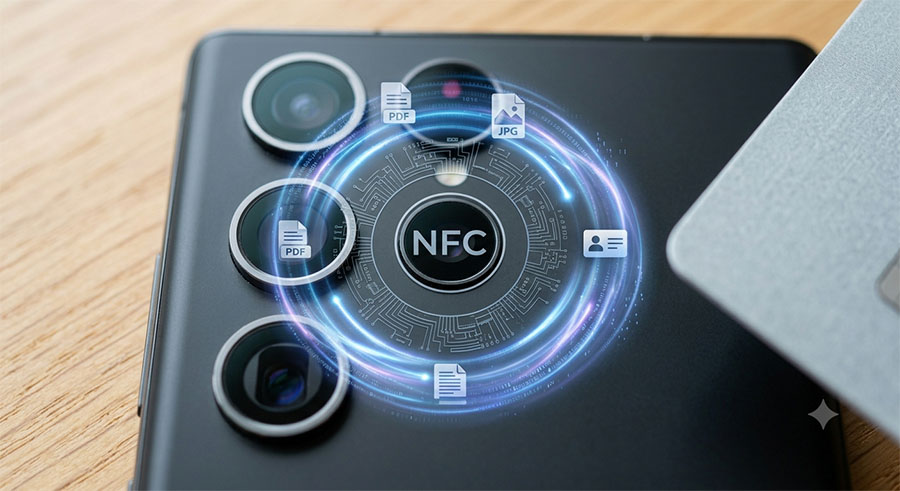
Near Field Communication (NFC) has become an essential feature on modern Samsung smartphones. It enables contactless payments, quick file transfers, smart tag pairing, and access control. When NFC stops working, it can be frustrating, especially if you rely on services like Google Wallet or Samsung Wallet.
In this guide, we’ll walk you through the most common causes of NFC problems and explain how to diagnose and repair them.
What Causes NFC to Stop Working?
NFC issues can be caused by either software or hardware failures.
The most common causes include:
- NFC accidentally disabled
- Software bugs after an update
- Damaged NFC antenna
- Broken wireless charging coil
- Loose internal flex cable
- Faulty motherboard
- Water or liquid damage
- Physical impact after dropping the phone
Understanding whether the issue is software or hardware is the first step toward a successful repair.
Step 1: Verify NFC is Enabled
Before opening the device, check the basics.
- Open Settings
- Tap Connections
- Select NFC and Contactless Payments
- Make sure NFC is turned ON
Also verify that the default payment application is configured correctly.
Step 2: Restart the Phone
Many NFC problems are temporary software glitches.
A simple restart refreshes system services and may restore NFC functionality.
If the problem appeared after a software update, restarting several times can also help rebuild system caches.
Step 3: Test NFC with Another Device or NFC Tag
Before assuming a hardware failure, test NFC using:
- Another NFC-enabled smartphone
- An NFC tag
- Contactless payment terminal
- Samsung SmartTag
If none of these devices detect the phone, hardware inspection may be necessary.
Step 4: Remove Thick Cases or Metal Accessories
Certain accessories interfere with NFC signals.
Remove:
- Thick protective cases
- Magnetic wallets
- Metal phone holders
- Ring holders
- Credit card holders
Then test NFC again.
Step 5: Check for Software Updates
Samsung frequently releases firmware updates that improve NFC stability.
Go to:
Settings → Software Update → Download and Install
Installing the latest software version may resolve compatibility issues.
Step 6: Clear NFC Cache
If the NFC service has become corrupted:
- Open Settings
- Apps
- Show System Apps
- Locate NFC Service
- Clear Cache
Restart the device afterwards.
Step 7: Inspect the NFC Antenna
If software troubleshooting fails, inspect the hardware.
On most Samsung smartphones, the NFC antenna is integrated into:
- The wireless charging coil
- The rear cover assembly
- The upper midframe
- Battery cover module (depending on model)
A cracked antenna or torn flex cable will prevent NFC from functioning.
Common signs include:
- Contactless payments fail
- Phone never detects NFC tags
- Samsung Wallet cannot initialize NFC
- Intermittent NFC connection
Step 8: Check Internal Flex Connections
After a screen or battery replacement, connectors may not be fully seated.
Carefully inspect:
- NFC flex cable
- Wireless charging coil connector
- Motherboard connectors
Even a partially disconnected flex cable can disable NFC completely.
Step 9: Replace the NFC Antenna
If the antenna is physically damaged, replacement is usually straightforward.
Replacement generally involves:
- Removing the rear cover
- Disconnecting the battery
- Removing the charging coil/NFC assembly
- Installing a new original-quality replacement part
- Reassembling the device
Using genuine or high-quality replacement parts ensures the best compatibility and signal strength.
Step 10: Inspect for Motherboard Damage
If replacing the antenna doesn’t solve the issue, the fault may lie on the motherboard.
Possible failures include:
- Burned NFC controller
- Damaged communication IC
- Broken solder joints
- Corrosion from liquid damage
Motherboard repairs require professional diagnostic equipment and microsoldering expertise.
Preventing Future NFC Problems
To keep your Samsung phone’s NFC working properly:
- Use quality replacement parts during repairs.
- Avoid exposing the phone to moisture.
- Remove magnetic accessories when using NFC.
- Keep your software up to date.
- Protect your phone with a shock-resistant case.
When Should You Replace the NFC Assembly?
Consider replacing the NFC module if:
- The phone no longer detects any NFC tags.
- Samsung Wallet or Google Wallet consistently fails.
- The device recently suffered a drop.
- The wireless charging function has also stopped working.
- Internal inspection reveals a damaged antenna or torn flex cable.
Since many Samsung models combine the NFC antenna with the wireless charging module, replacing the complete assembly is often the most effective solution.
Final Thoughts
Most Samsung NFC issues can be resolved through simple software troubleshooting, but persistent failures often point to a damaged NFC antenna, charging coil, or internal connector. Identifying the root cause before replacing parts can save both time and money.
If you’re repairing your Samsung smartphone, always choose high-quality replacement components to ensure reliable NFC performance and long-lasting durability. Whether you’re a professional technician or a DIY enthusiast, using the correct parts is essential for a successful repair.